


Cinematic Library is a Datapack Library that provides systems to run cinematics in a simple way, using Animated Java + Cameras Plugin.
You must have medium blockbench and datapack knowledge to use this Library.
Usage
Get Started
You must download the following plugins in your Blockbench 5.1.4+:
First Steps
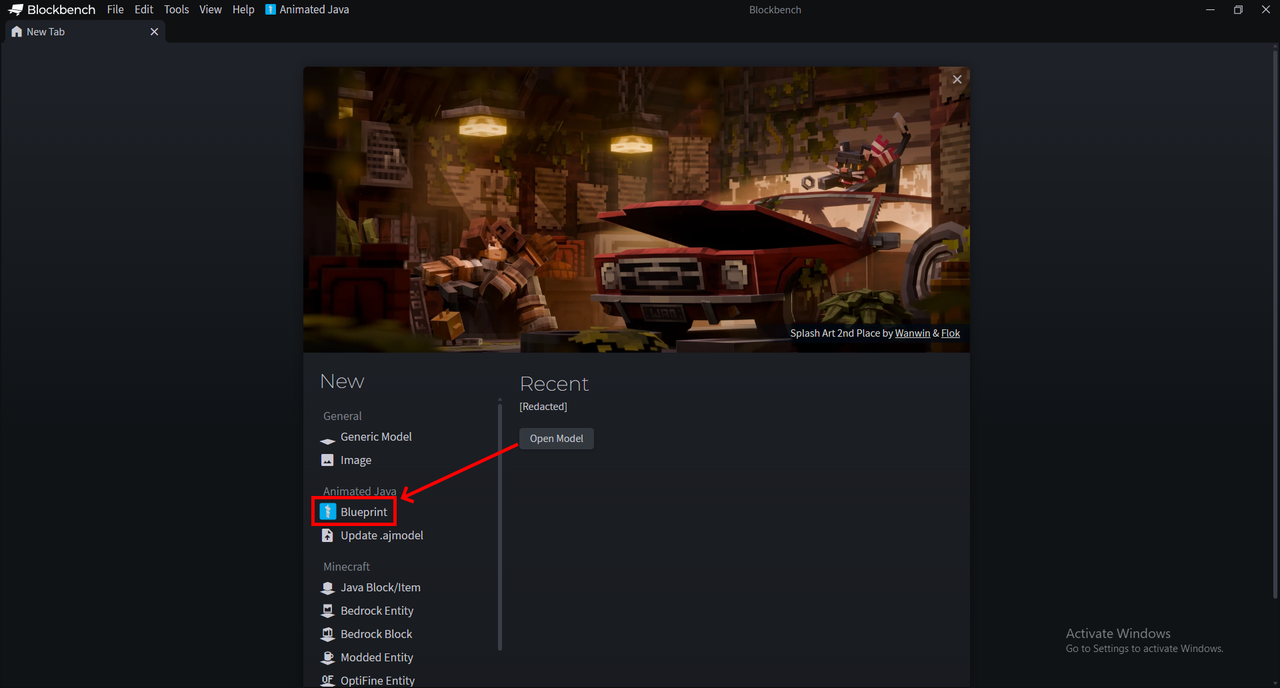
Create a new Animated Java blueprint
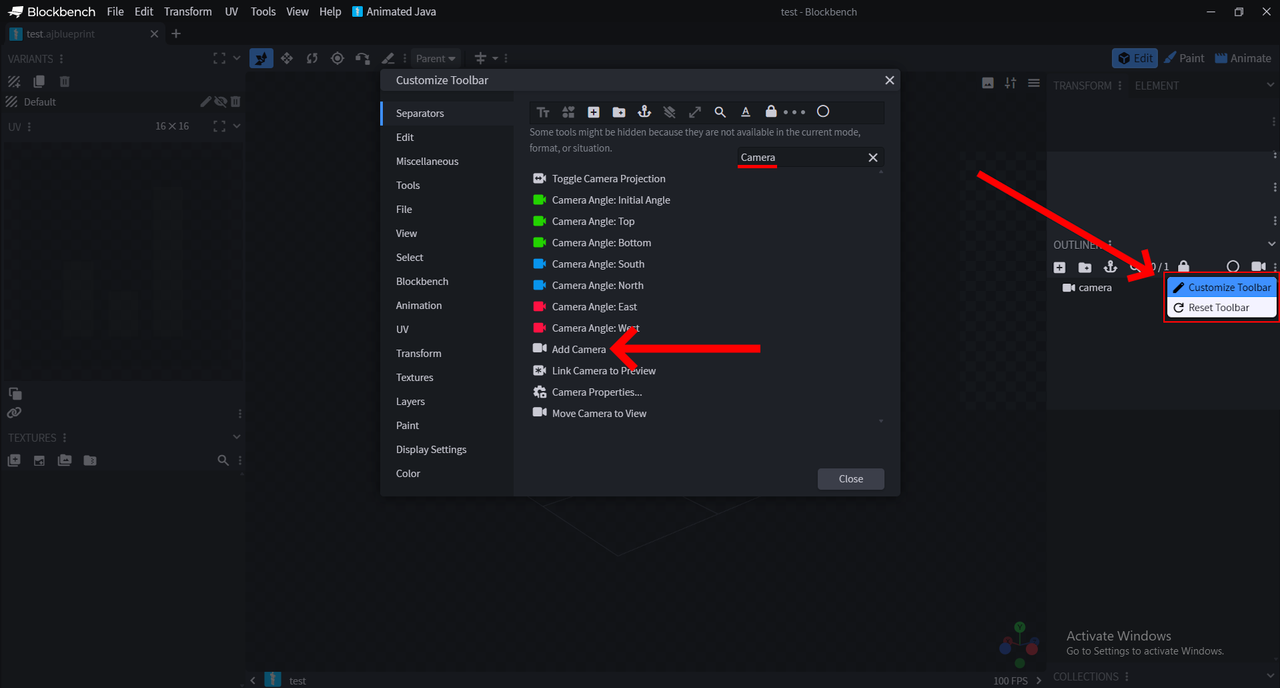
Customize your Toolbar and add the button 'Add Camera'
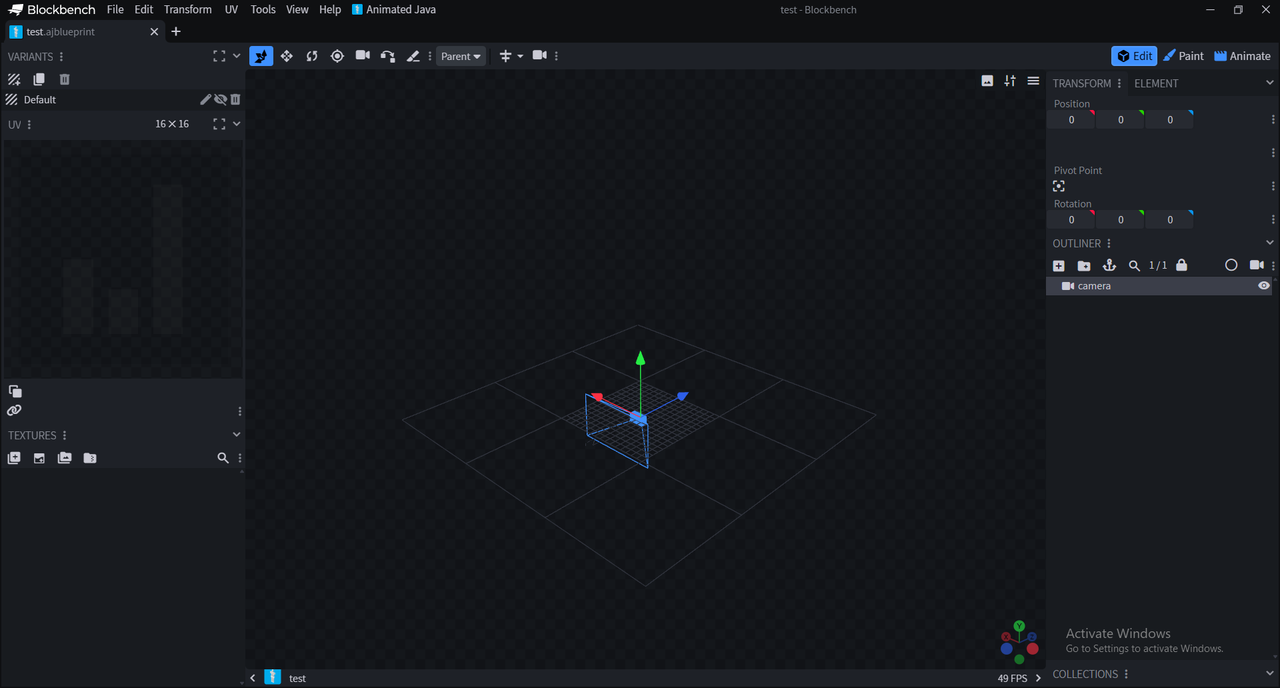
Pressing the new button should create a New Camera in your Viewport.
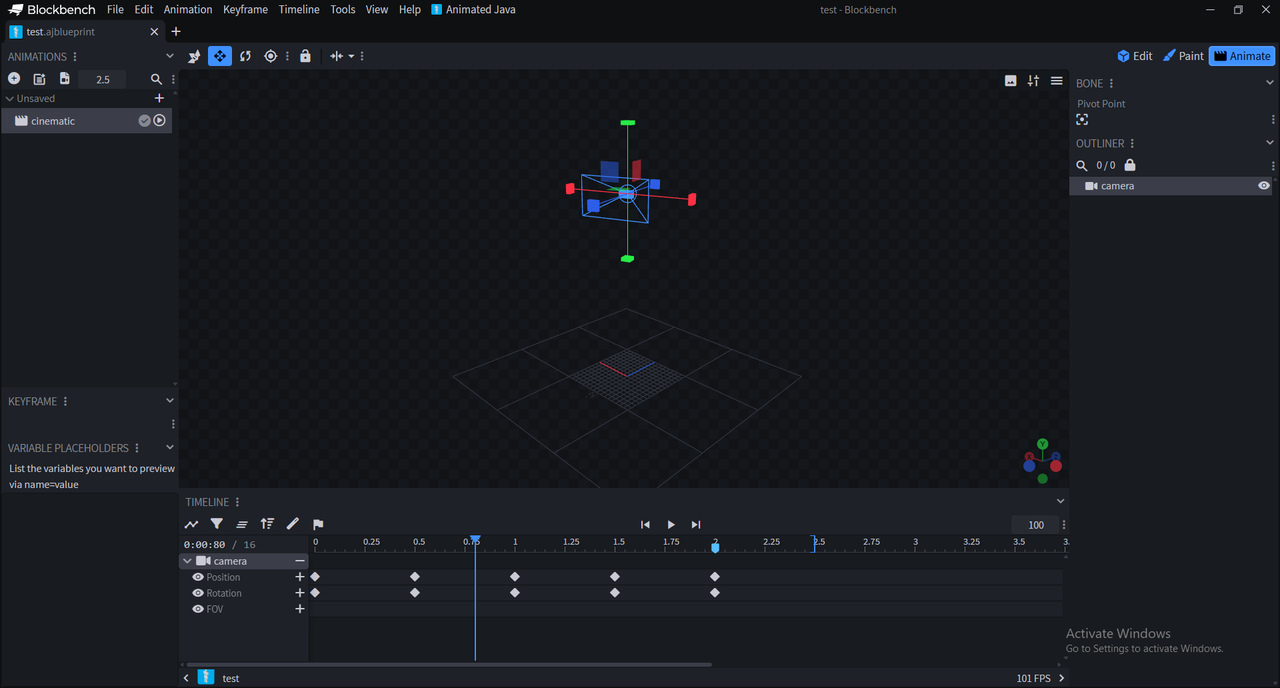
You can animate the camera however you like.
Now, configure your Animated Java Blueprint and export it! More information about Animated Java Here
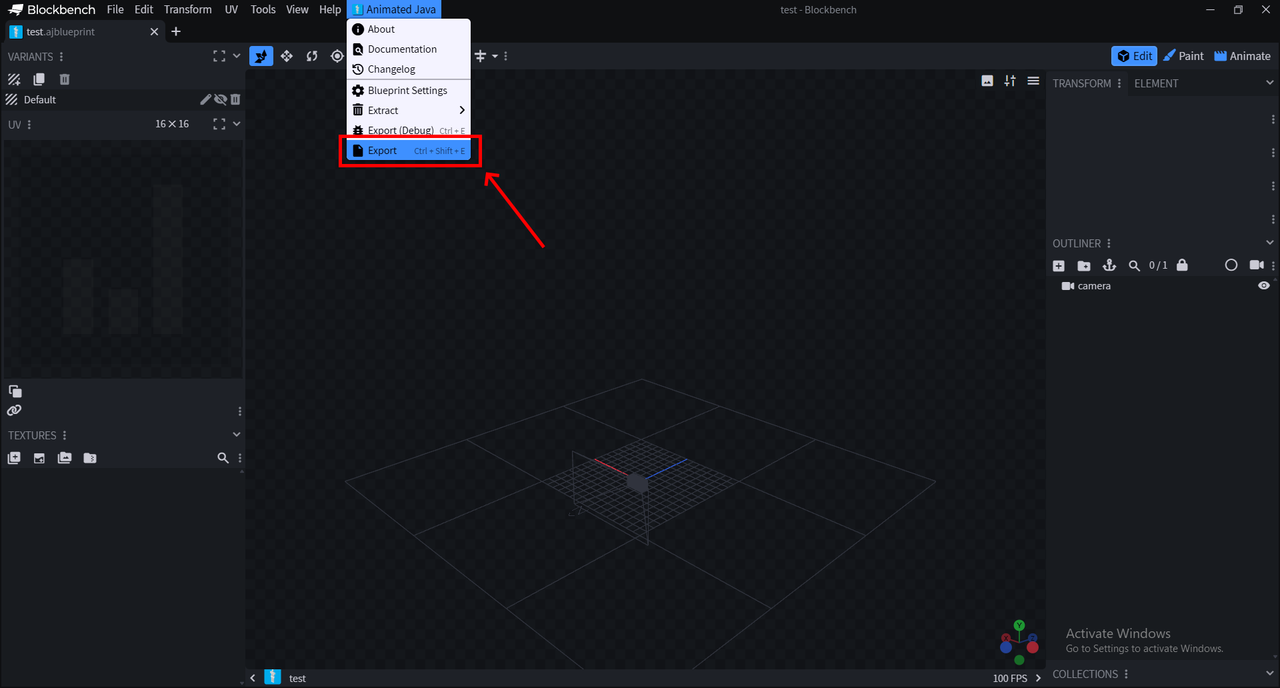

In the Cinematic Library API you can find:
cinematic_library:api/cinematic/schedule
cinematic_library:api/cinematic/end
cinematic_library:api/cinematic/change_camera
For the first function, you must specify args to make it work.
Cinematic/Schedule
This function schedules a cinematic, which means it will run as soon as all the marked chunks are loaded (Explained further on)
You must add the arguments below to make this function work:
placement : string
Coordinates XYZ where the Animated Java Rig will be summoned and the extra_function will be executed.
rotation : string
Rotation XY as the Animated Java Rig will be rotated.
blueprint_name : string
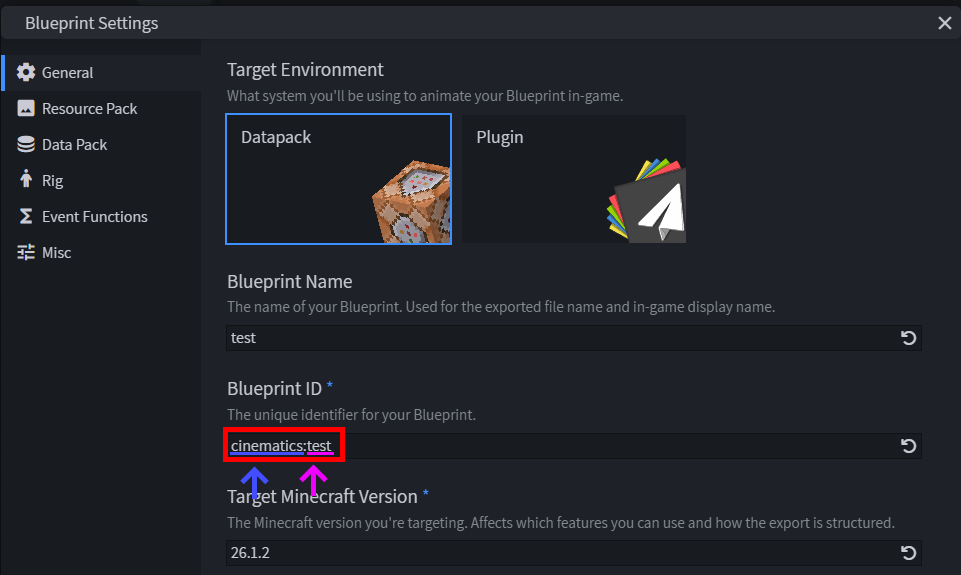
Name of your Animated Java Blueprint, you can deduce it from the Blueprint ID (Pink Underline)
blueprint_namespace : string
Namespace of your Animated Java Blueprint, you can deduce it from the Blueprint ID (Blue Underline)
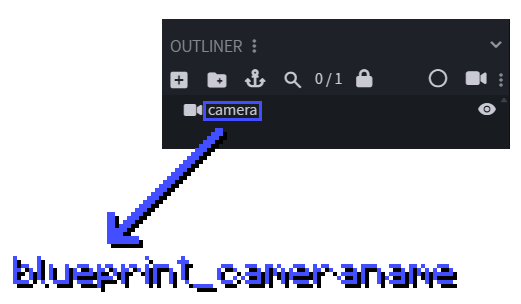
blueprint_cameraname : string
Name of your CAMERA, if it is camera, then put there "camera"
player : string
Entire target selector, an example is @a or @a[gamemode=survival]
marked_chunks : array
Here you must specify the chunks you want to mark, with this structure:
{
  marked_chunks: [
  {sx:22,sz:5,ex:22,ez:5}
  ]
}
sx and sz refers to the starting point (X and Z) of the forceload, ex and ez refers to the ending point of the foceload.
Marking your chunks is important, since the chunks where you want your cinematic may be unloaded.
Optional
extra_function : string
Runs the specified function at placement
ending_function : string
Runs the specified function at placement
ending_gamemode : string
Its the gamemode the players with the selector player will have when the cinematic ends. By default its adventure, so its great idea change it.
The ending command should look something like this:
function cinematic_library:api/cinematic/schedule {args:{placement:"22 -60 -5",rotation:"0 0",blueprint_name:"test",blueprint_namespace:"cinematics",blueprint_cameraname:"camera",blueprint_animation:"cinematic",player:"@a",marked_chunks:[{sx:22,sz:5,ex:22,ez:5}]}}
Cinematic/Change Camera
This function changes the camera name in an easy way, just put in there the name of your new camera and it will change.
new_cameraname : string
Name of the camera you want the players to spectate.
The ending command should look something like this:
function cinematic_library:api/cinematic/change_camera {new_cameraname:"camera2"}
Cinematic/End
This function ends the running cinematic.
Advice
This is an early version of this Library, it is global and can't support many cinematics for different players at the same time, but it will be added in a future update.
For now, its made for events and maps that want global cinematics.
To add (In the future)
- Handle multiple cinematics at the same time
- Change the name from "schedule" to something like "append"
- Make the Modrinth page fancier and less comfortable lol
Featured versions
See allProject members

DEWONIC
Owner